2 MINUTE READ || MARCH 2026
If you’ve ever shared your screen during a meeting and had a Teams notification pop up with way too much information, this is for you.
It usually happens at the worst time: you’re presenting, someone messages “Krispy Kreme is in the conference room eat it before I do!” and suddenly your screen share becomes a live feed of your team’s snack economy. Even if the message is harmless, it can still derail the moment or worse, expose something private.
The fix is simple: keep Teams notifications, but hide the message content.
What you’re actually turning off (and why it helps)
Teams can show notifications in two ways:
- A banner/pop-up (toast notification)
- A preview of the message content (the actual text)
By disabling message previews, you still get the heads-up that someone messaged you, but the notification won’t display the content on-screen. That’s ideal for:
- Screen sharing
- Presenting to customers or leadership
- Working in public spaces
- Recording demos or training sessions
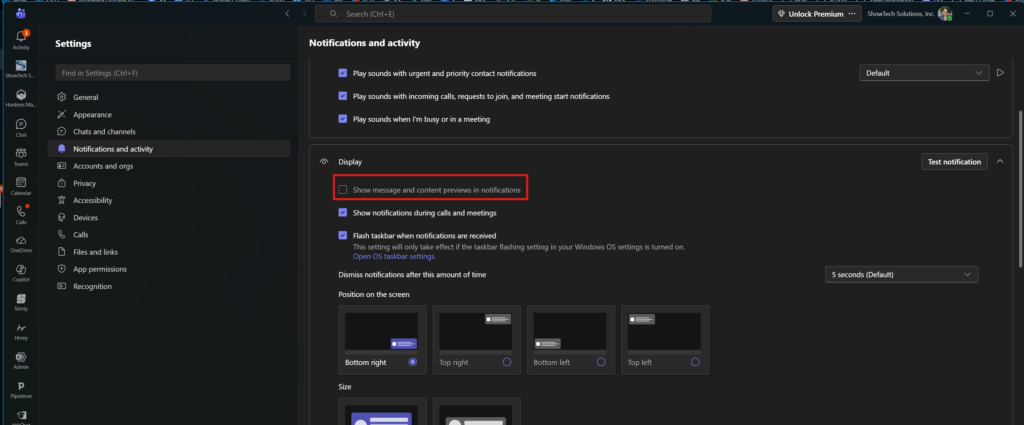
How to turn off message content previews in Teams (desktop)
- Open Microsoft Teams
- Click Settings and more (the … near your profile picture)
- Select Settings
- Go to Notifications and activity
- Find the setting for message previews and turn off:
“Show message and content previews in notifications” (wording may vary slightly)
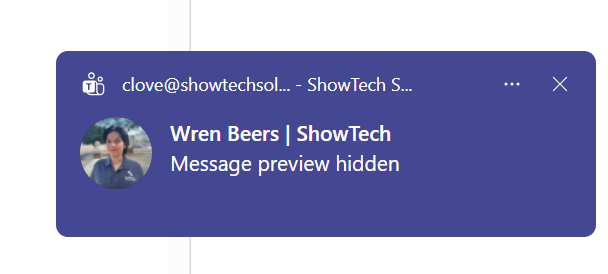
Once this is off, Teams will still notify you, but notifications will be more generic (for example, “New message from Alex” without the full text).
What to expect after you disable it
After turning this off:
- You’ll still see that a message arrived
- You’ll still see badges, activity counts, and the chat list updating
- But the pop-up/banner won’t reveal the message contents
So instead of your meeting seeing “Krispy Kreme is in the conference room,” they’ll just see a note that someone has sent you a message. This also helps with focus, as you may not feel rushed to answer a question you see.
Bonus tips (optional, but useful)
1) Use “Do not disturb” during presentations
If you want to reduce interruptions entirely:
- Set your status to Do not disturb before presenting.
- You can still allow VIPs by using Priority access (if your org has it enabled).
2) Pair with Windows/Mac notification controls
Even with previews off, you may want fewer pop-ups during screen shares:
- On Windows, consider Focus Assist / Do not disturb
- On macOS, use Do Not Disturb / Focus
I hope this helps! If you need any extra assistance, be sure to connect with me!